Press Space. Your video opens.
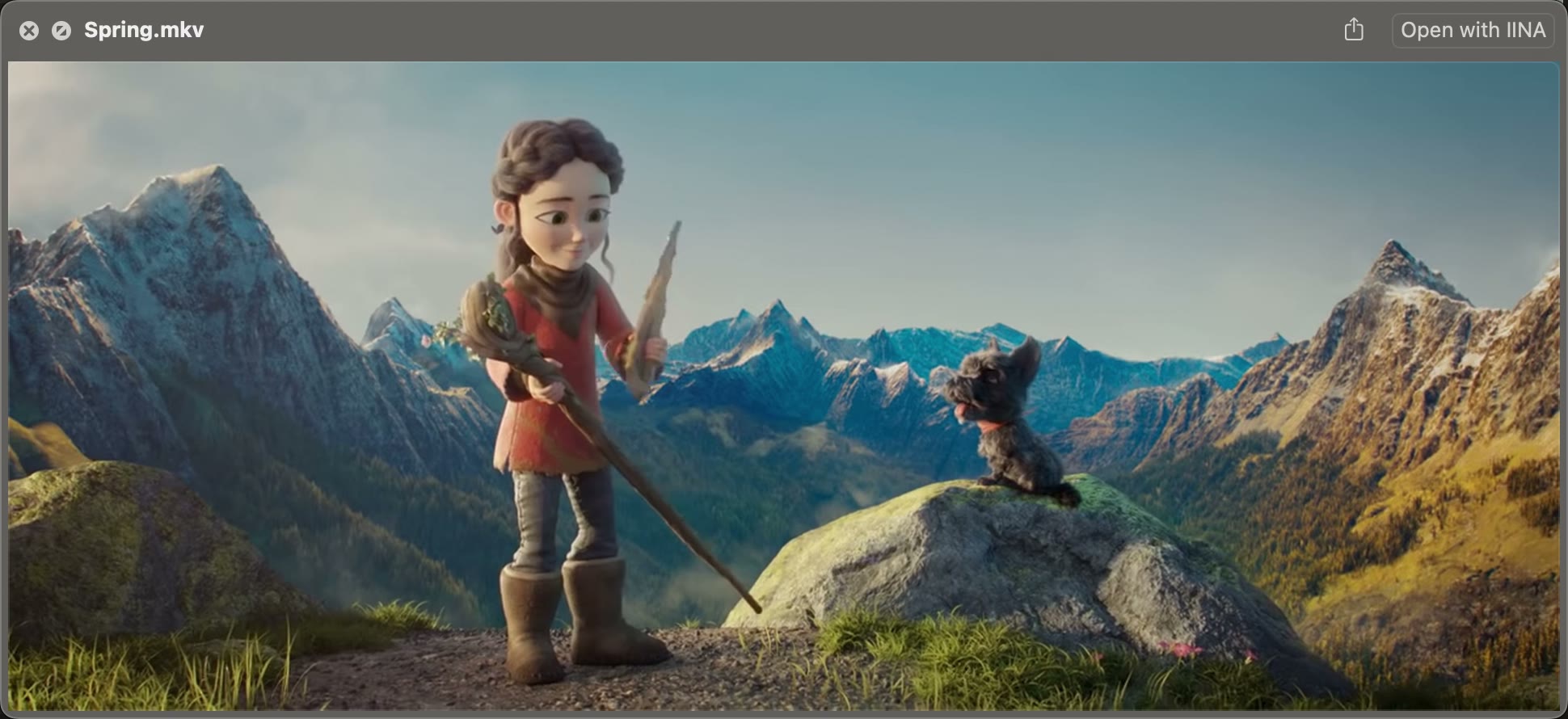
Select a video and press Space. Playback starts in Quick Look; move the pointer over the image to reveal the progress bar, volume and playback controls. Finder’s shortcuts and full screen work as usual.

MKV and WebM previews for Finder
VideoGlance extends macOS video previews to MKV, WebM, WMV and other formats Quick Look can’t play on its own. Select a video in Finder, press Space, and it starts right away — no separate player needed.
Free · No account or subscription · Version 1.1
How it works
Just once. After that, there’s nothing to launch: macOS calls on VideoGlance whenever you preview a video.
An MKV, a WebM, a WMV… in any Finder window. Its thumbnail already shows a frame from the video.
The preview opens and playback starts. Press Space again to close it.
In your Finder
Select a video and press Space. Playback starts in Quick Look; move the pointer over the image to reveal the progress bar, volume and playback controls. Finder’s shortcuts and full screen work as usual.
In Finder’s Preview pane, VideoGlance adds an interactive ring to navigate MKV and WebM videos. Move the pointer over the image to reveal the controls: click the center to play or pause, then click the ring to choose a different moment without interrupting playback.
Excerpts and stills from Spring — © Blender Foundation | cloud.blender.org/spring. CC BY 4.0. Silent excerpts, scaled and shown in Finder recordings, with an added key annotation. No affiliation with Blender Foundation.
Made for the Mac
Space opens the video and plays it. Space or Escape closes it. The arrow keys move to the next file, just like with photos.
15-second skips, a progress bar, volume, speeds from 0.5× to 2×, remaining time and full screen.
Your videos show a frame in Finder instead of a generic icon, with their original proportions.
On the right of the Finder window, a play button and its ring let you play and browse the video in place.
Double-clicking still opens your usual player. MP4 and MOV files keep Apple’s previews.
Files are read on your Mac, read-only, with no network connection. No account, no ads, no data collection.
Formats
From H.264 or HEVC movies to VP9 or AV1 web videos, VideoGlance relies on the playback libraries of FFmpeg and mpv. See formats and codecs in detail.
Availability
VideoGlance is free for personal and professional use: no account, no subscription, no ads. Download the disk image checked by Apple, or install it with Homebrew.
It requires a Mac with Apple silicon running macOS 15 Sequoia or later.
Download VideoGlanceFrequently asked questions
No. Once the app is installed, macOS asks it for previews and thumbnails whenever needed. You can keep its information window closed.
No. It complements Finder so you can check a video quickly. Double-clicking still opens your usual player, such as IINA or VLC, and there’s no library to manage.
No. VideoGlance plays the file’s default audio track for a quick preview. To switch language or subtitles, open the video in your usual player.
No. Previews and thumbnails are made on your Mac, inside the macOS sandbox, with read-only access to the file being shown and no network access.